Windows
Chrome, Edge, Firefox and other modern browsers.
Windows, Mac & Linux downloader
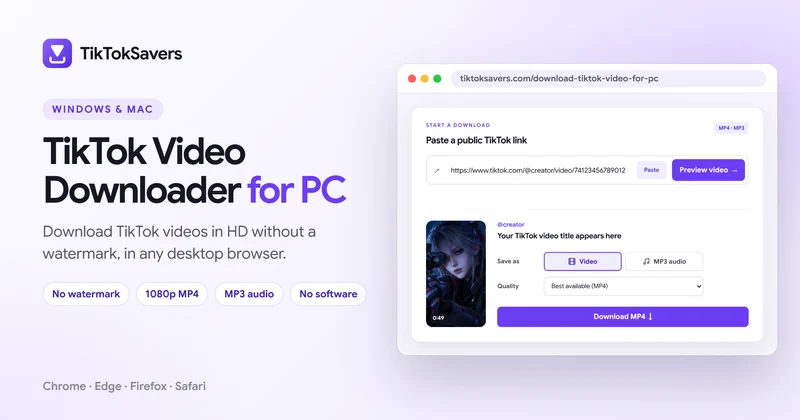
Download TikTok videos on your PC without watermark using TikTokSavers. It works directly in your desktop browser, so you don't need to install software, extensions, or a TikTok downloader app.
Start a download
This is a photo post. It has no video, but you can save its sound as an MP3.
Copy a public TikTok video link, paste it into TikTokSavers, and choose from the available HD MP4 video or MP3 audio options. You can use it on Windows, Mac, Linux, laptops, and desktop computers.
On a phone or tablet instead? Use our TikTok video downloader for iPhone and iPad. Only have the creator's username? Browse their public videos with our TikTok video downloader with username.
Step by step
Downloading a TikTok video on a computer only takes a few steps.
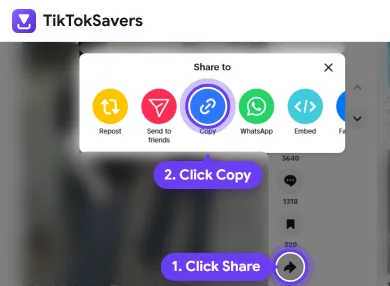
Open TikTok.com in your browser and find the video you want to download.
Copy the URL directly from your browser's address bar, or select Share → Copy link on the TikTok post.
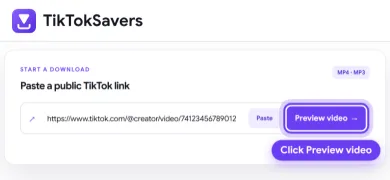
Open TikTokSavers in another browser tab.
Paste the copied TikTok URL into the download box and click Preview Video. TikTokSavers will process the public link and display the available download options.
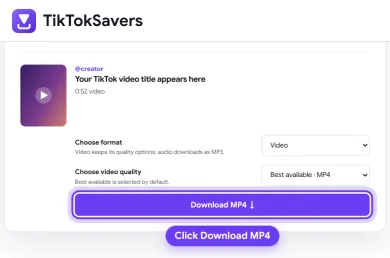
Choose the video quality or audio format you need. Depending on the original TikTok video, available options may include 1080p, 720p, 576p, or MP3 audio.
Click Download next to your preferred option.
Your browser will normally save the MP4 or MP3 file to your computer's Downloads folder.
On Windows, open: File Explorer → Downloads
You can also open your browser's download history to quickly find recently downloaded TikTok videos.
You don't need to install a desktop program or browser extension to download TikTok videos with TikTokSavers.
The downloader is web-based and works through modern desktop browsers such as Google Chrome, Microsoft Edge, Firefox, and Safari.
The process is simple:
TikTokCopy LinkTikTokSaversChoose FormatDownload
This is useful when you want to save a TikTok video without installing additional software or giving a browser extension access to your browsing activity.
TikTokSavers also doesn't require your TikTok username, password, or account login to process a supported public video URL.
Video quality
Not every TikTok video is available in the same resolution. The download quality depends on the original source video.
Use this quick comparison to choose the right format:
| Download Option | Best For | Quality | File Size |
|---|---|---|---|
| 1080p HD MP4 | Large screens, editing & offline viewing | Highest available video quality | Larger |
| 720p MP4 | Everyday viewing & sharing | High quality | Medium |
| 576p MP4 | Saving storage or faster downloads | Standard quality | Smaller |
| MP3 Audio | Music, sounds & audio-only playback | Audio only | Smallest |
For the best viewing experience on a PC or laptop, choose 1080p HD when it is available from the original TikTok video.
720p gives you a good balance between video quality and file size, while 576p is useful when you want a smaller file. If you only need the sound, choose MP3 instead of downloading the complete video.
Choosing 1080p cannot turn a lower-resolution source into Full HD. TikTokSavers shows the formats available from the source, so some videos may have different download options.
Most desktop browsers save downloaded TikTok videos to the default Downloads folder.
On Windows, open: File Explorer → Downloads
If your browser asks you where to save files, the video may instead be stored in the folder you selected.
You can also check your browser's download history to find the downloaded MP4 or MP3 and open its location.
Once downloaded, an MP4 video can be watched offline or opened with compatible media players and video editing software.
Yes. TikTokSavers is a web-based downloader, so you can use the same basic process on different desktop operating systems.
Windows
Chrome, Edge, Firefox and other modern browsers.
macOS
Safari, Chrome, Firefox and other supported browsers.
Linux
Chrome, Chromium, Firefox and other modern browsers.
Copy the TikTok video URL, paste it into TikTokSavers, choose an available format, and download the file.
The exact download location depends on your browser settings, but downloaded files are normally placed in your Downloads folder.
Troubleshooting
Most downloads are straightforward, but a link or browser setting can sometimes cause a problem.
Check that you copied the complete TikTok video URL.
If necessary, open the video again on TikTok and copy a fresh link from the browser address bar or Share → Copy link.
Private, deleted, unavailable, or restricted content may not be processed.
Try the download again and check whether your browser is blocking the file or waiting for download confirmation.
If the problem continues, try opening TikTokSavers in another supported browser such as Chrome, Edge, or Firefox.
Check your browser's download history first. It normally shows the file and provides an option to open its location.
On Windows, also check: File Explorer → Downloads
FAQ
Yes. TikTokSavers works directly in your web browser, so you don't need to install desktop downloader software or a browser extension.
TikTokSavers provides available clean video downloads for supported public TikTok links without adding TikTok's visible watermark to the downloaded file.
If a 1080p source is available for the TikTok video, you can select the available Full HD option. The maximum resolution depends on the original video.
Yes. When an audio option is available, choose MP3 instead of MP4 to save the available TikTok audio to your computer.
Most browsers save them to your default Downloads folder. On Windows, open File Explorer → Downloads, or check your browser's download history.
TikTokSavers runs in a web browser rather than depending on a dedicated Windows application, so you can use it with supported modern browsers on both Windows 10 and Windows 11.
Yes. Open TikTokSavers in a supported browser such as Safari, Chrome, or Firefox, paste the public TikTok video URL, and choose your available download format.